
GPT Image 2.6 AI Image Generator
Create or refine a still image
History
Turn a specific object description into a coherent still image, then explore one-variable reference edits on flux3video.dev. Describe the subject, composition, lighting and materials; start with text or provide one actual reference image; and review the result before requesting a focused change. The GPT Image 2.6 AI Image Generator offers two selectable models, GPT Image 2.6 Flare and GPT Image 2.6 Sunburst. Both are enabled for generation and editing. Check your account access and the live Required Credits quote for your chosen model and size or aspect ratio before you select Generate. Follow this guide with GPT Image 2.6 Flare or GPT Image 2.6 Sunburst; the native selector also lets you explore other models separately.
Create and refine one clear image
Choose a creation mode
Text to Image starts with an editable prompt and uses zero uploads. Image to Image uses one reference image and an editable prompt. Choose according to whether you are building from a description or refining an actual image; this page’s workflow does not require a reference for text generation.
Describe the image you want
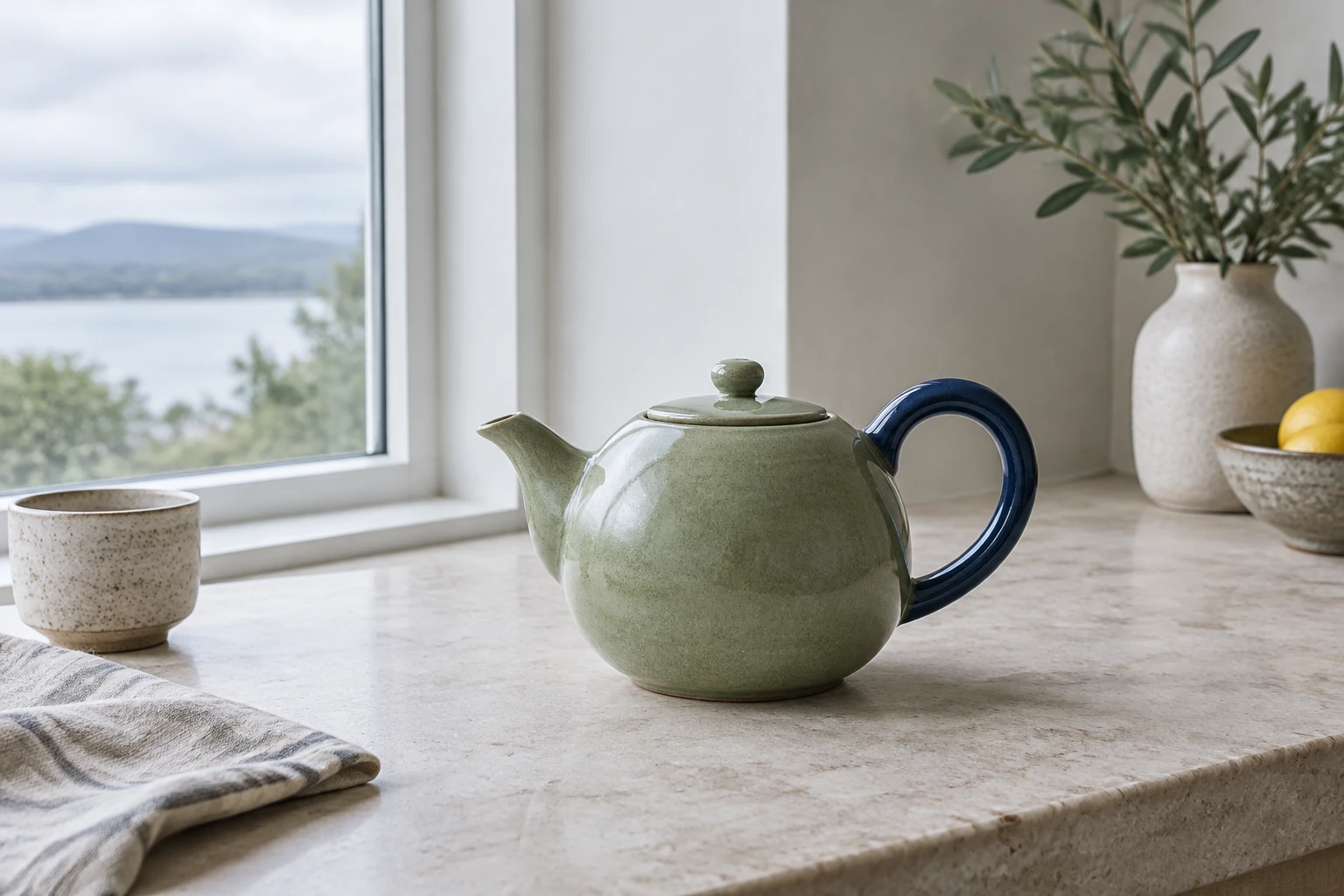
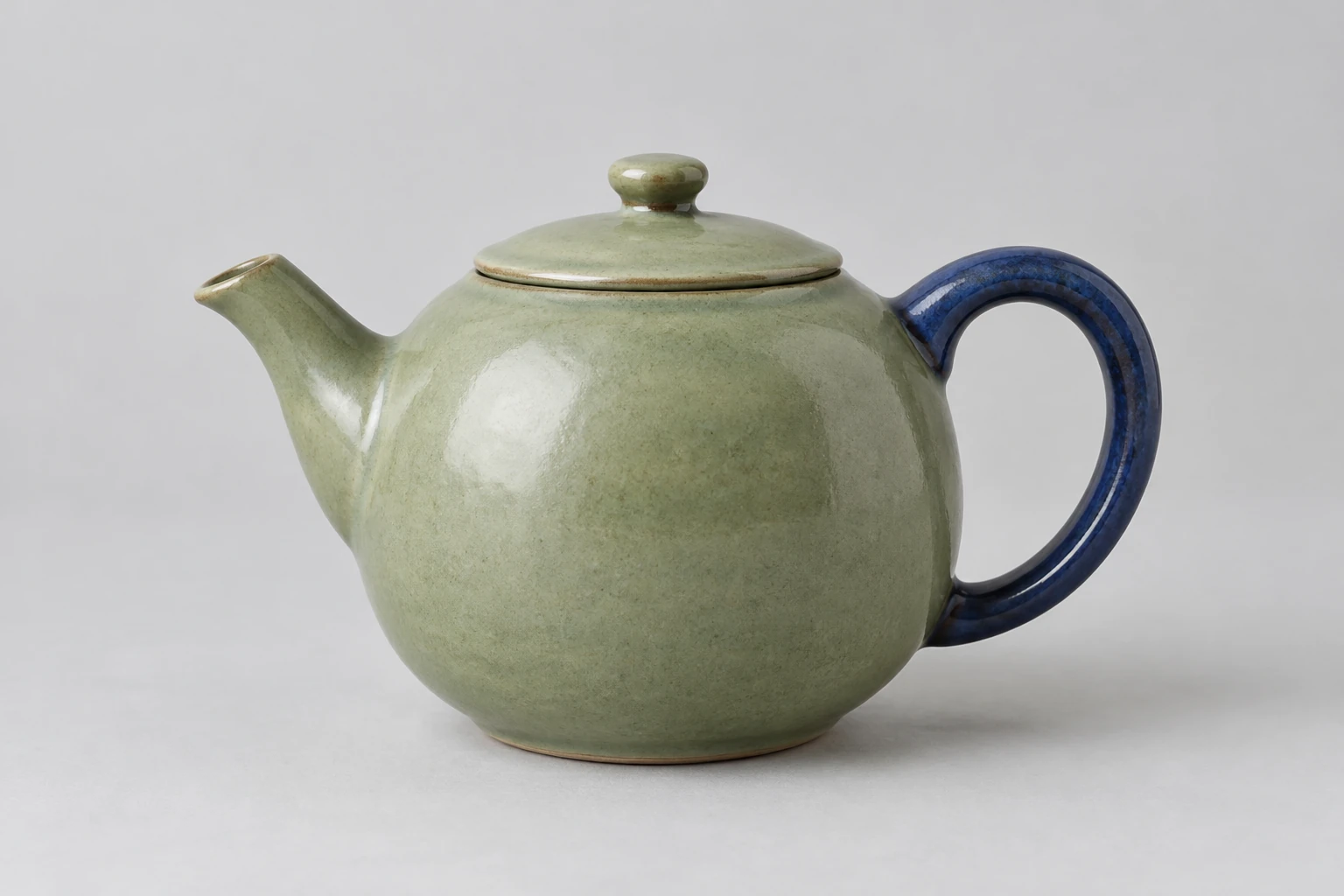
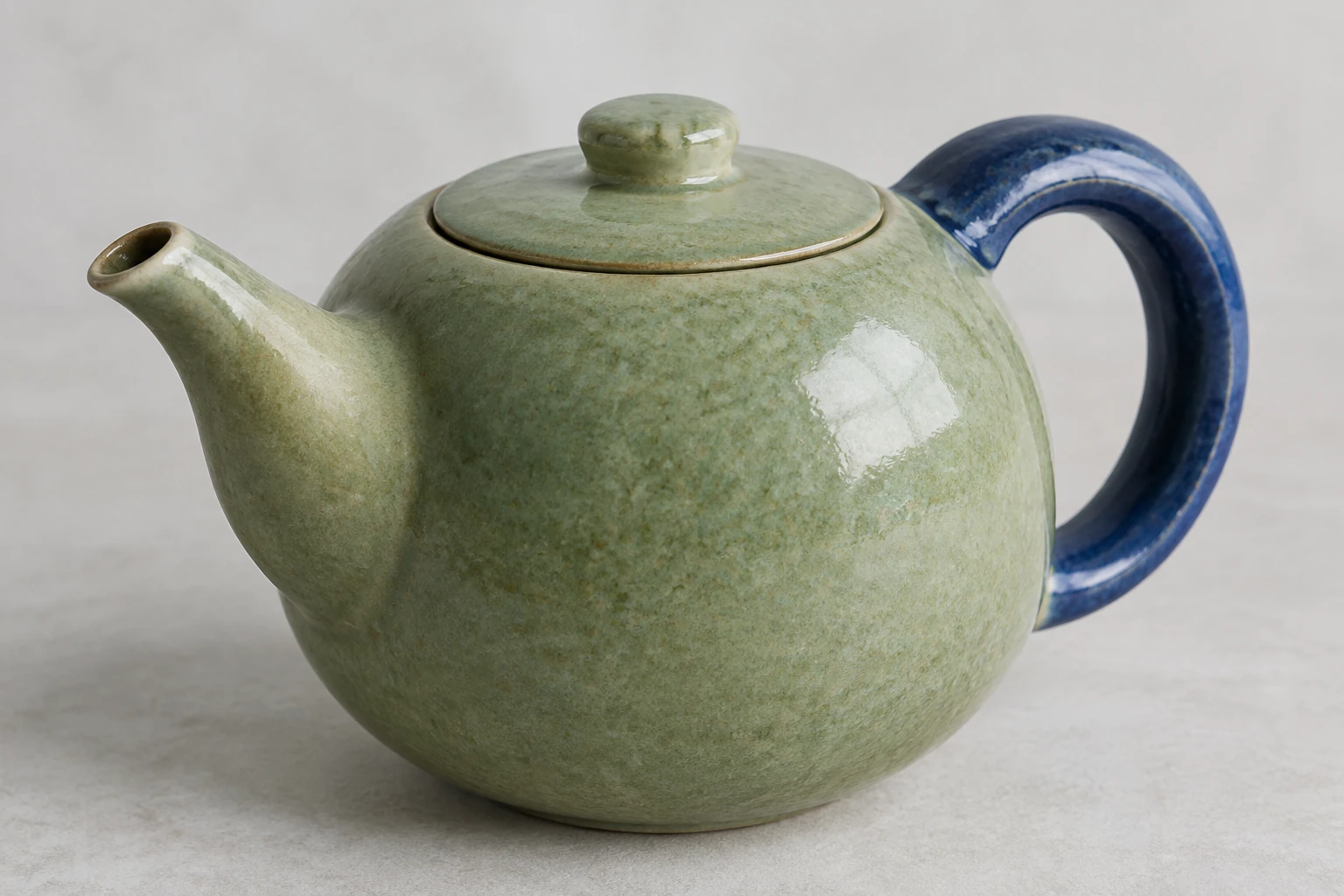
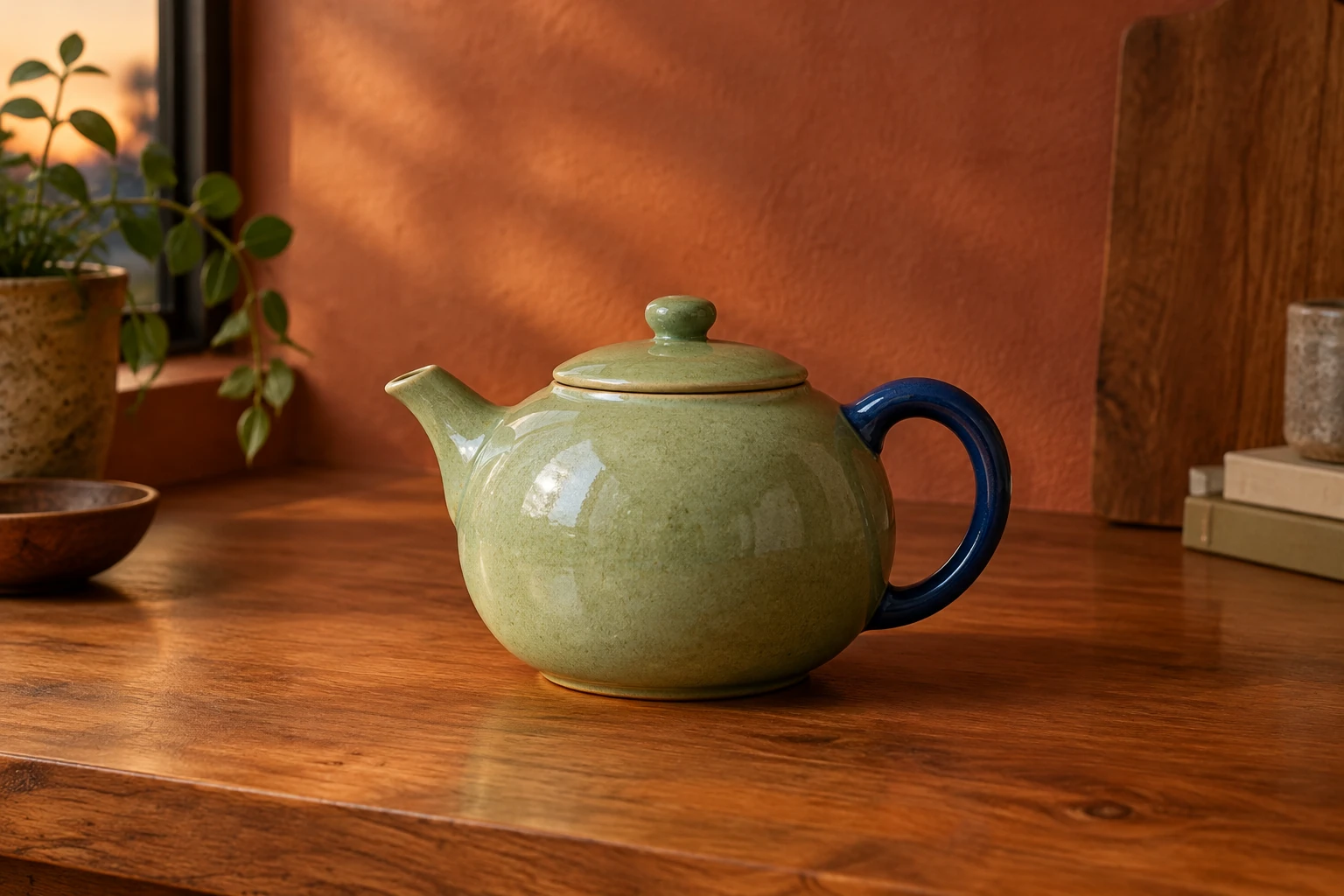
Name the subject and its visible features, then specify composition, setting, lighting and materials. For the teapot, identify the rounded moss-green body, short curved spout, dark blue loop handle and fitted lid. State whether it belongs beside a cool-lit window or on a timber counter under warm evening light.
Check model, format and access
Select GPT Image 2.6 Flare or GPT Image 2.6 Sunburst, then inspect the available size or aspect choices. The current model and size or aspect selection determine the live Required Credits. Confirm account access and review that quote before Generate; neither model has free-eligible access.
Review and make one focused change
Check the image’s silhouette, edges, material appearance, unwanted lettering and the details that should remain unchanged. For a revision, change one requested variable—such as background or lighting—and keep the rest of the instruction stable. Find generation status and ready images in History.
Build a prompt around the object and scene
Useful image directions separate the subject from the staging. Describe the teapot’s shape, color, parts and material first. Then explain where it sits, what surrounds it, the camera-facing composition you have in mind, and how light falls across the surfaces. A clear scene alternative changes a specific dimension: move from light stone beside a tall window with cool overcast glow to a timber counter against a subtle terracotta wall with soft evening light. Keep the object description consistent so the setting change is easy to assess. Avoid piling on adjectives that compete with the intended design.
Use a reference for a deliberate edit
Image to Image accepts one reference image and an editable prompt. Supply an actual photo of the object or character you want to refine, and describe the requested adjustment narrowly. Ask for a lighting or background refinement while naming the visible identity, design, colors and details to preserve. Do not expect an exact copy: inspect the generated image for changes to the silhouette, edges, materials, colors or small features. If something important shifts, revise the prompt with one clear correction and review again. The aim is a coherent still image, not a guarantee of pixel-perfect fidelity.
Compare alternatives without changing everything
A useful comparison holds the subject description steady and varies one element at a time. For example, keep the teapot, camera framing and material notes consistent while changing only the setting from cool window light to warm evening light. Review whether the object remains readable and whether the changed light suits the intended mood. In reference editing, use the same principle: preserve the photo’s visible design while asking for one background or lighting change. This makes the result easier to judge and gives the next prompt a concrete purpose. Save attention for unwanted lettering and details that should have remained intact.
Check the result and find it in History
Generation status and ready images are available in History. Inspect the finished still at the chosen size, including the outline against its background, the boundaries between materials, and any lettering or extra details you did not request. Compare it with your brief rather than assuming a prompt was followed exactly. If the composition is close but one aspect needs work, make a targeted revision instead of rewriting every instruction. Before each new generation, check current account access and the live Required Credits quote for the selected model and size or aspect.
GPT Image 2.6 questions
What does the GPT Image 2.6 AI Image Generator do?
It provides a still-image workflow: create from an editable text prompt or edit using one reference image and an editable prompt. Describe the subject and scene, generate, then review and refine the image.
Do I need a photo to generate an image, and how many can I use for an edit?
Text to Image uses an editable prompt with zero uploads. Image to Image uses one reference image and an editable prompt. For an edit, provide the actual image whose visible subject you want to preserve.
Is access free, and how do I check the cost?
Free eligibility is not available for GPT Image 2.6 Flare or GPT Image 2.6 Sunburst. Check your account access and the live Required Credits quote after choosing a model and size or aspect ratio, before selecting Generate. No fixed price is stated here.
How long will generation take, and where is the result?
Generation time can vary, so this guide does not promise a wait time. Check status and find ready images in History.
What is the difference between GPT Image 2.6 Flare and Sunburst?
These are the two GPT Image 2.6 options covered by this guide, and both support generation and editing. Choose either based on your preference; this guide does not claim a quality or speed advantage for one.
How should I revise and review an image?
Request one change at a time, such as a lighting or background adjustment, while stating which visible details should stay. Review silhouette, edges, materials, unwanted lettering and preserved features. Iterate as needed rather than assuming exact fidelity.
More ideas to explore
flux3video.dev · Updated
See update history
- — Added a GPT Image 2.6 still-image guide for one-variable still-life revisions around a ceramic teapot, with four composition studies, text and single-reference prompts, live-credit guidance and History review.