
Practical first-run guide
Bigfoot Video Generator: A First-Time Walkthrough From Prompt to Clip
Create a fictional Bigfoot encounter
History
Loading history…
Your questions, answered
What is Bigfoot Video Generator?
It creates a short fictional video of a Bigfoot-like character from your scene direction. You can plan a quiet sighting, a vlog reaction or a light comic encounter, then compare the finished movement in History.
How do I start?
Begin in Text to Video with a clear setting and one action. Switch to Image to Video before adding a still reference. Choose the available video options, read the quote and submit the matching scene request.
Can I try it for free?
Check your current account credits and the selected model’s access conditions. When the available balance covers the quoted job, you can generate without buying more credits.
What do I upload?
No upload is needed for Text to Video. In the image-guided mode, use one clean still that establishes the subject or forest composition you want. Avoid several competing figures or a screenshot covered by controls and captions.
How much does it cost?
Read the live credit quote for the selected model and settings before submitting your forest encounter clip. Preparing inputs or editing a description does not start a generation.
When is the result ready?
Follow the submitted job’s estimate and progress. The model, settings and queue affect waiting; History keeps the completed clip available for review and download.
Build one memorable encounter in the woods: a glimpse between trees, a surprised camera turn or an unexpectedly friendly selfie. The Bigfoot Video Generator on flux3video.dev gives you a text-led starting point for a fictional forest scene. Choose the camera's point of view, describe what the creature does and leave the action enough time to read. Use an image-guided mode only when a particular still should establish your opening composition.
Generate a Bigfoot video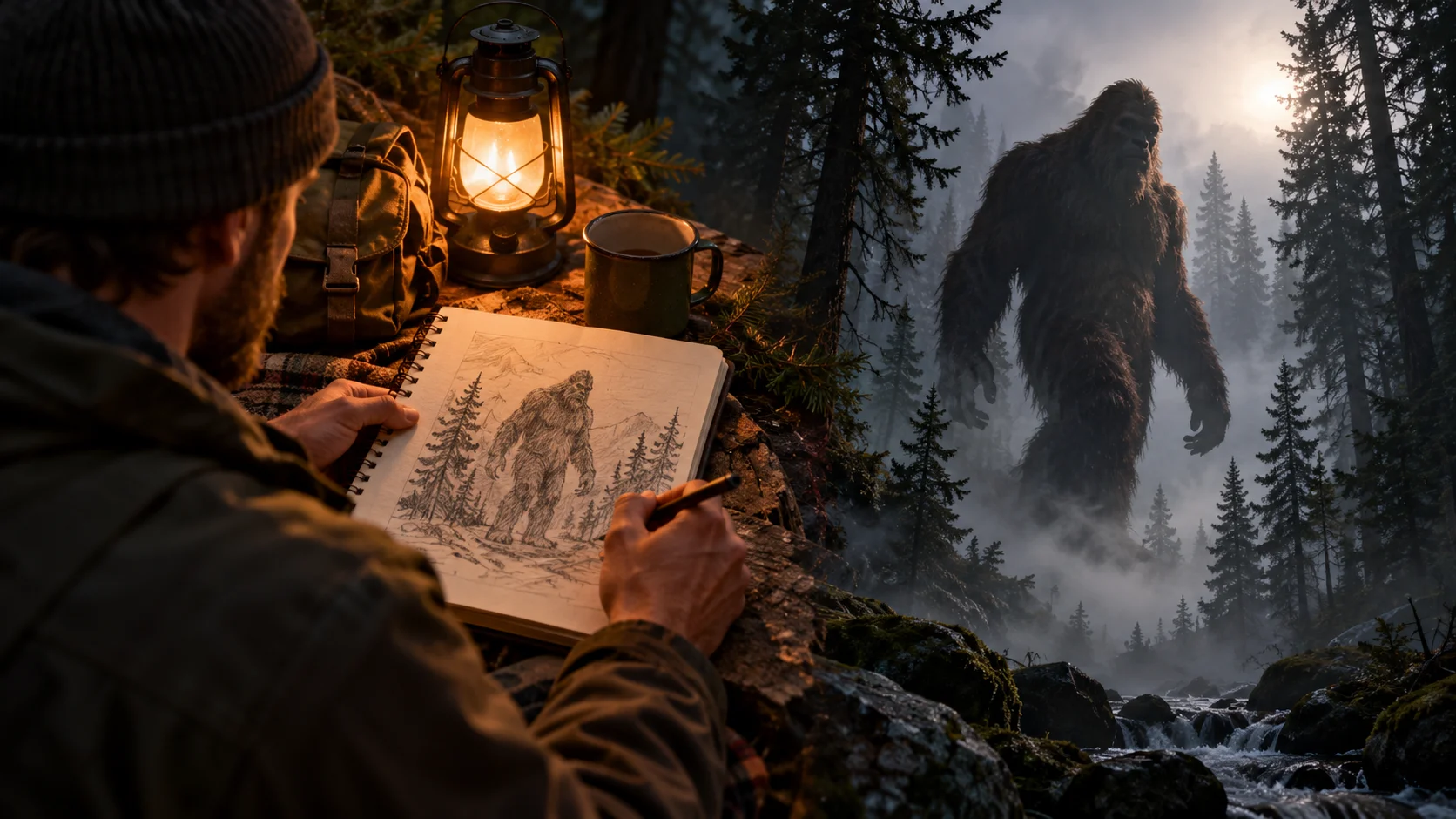
From first prompt to finished clip
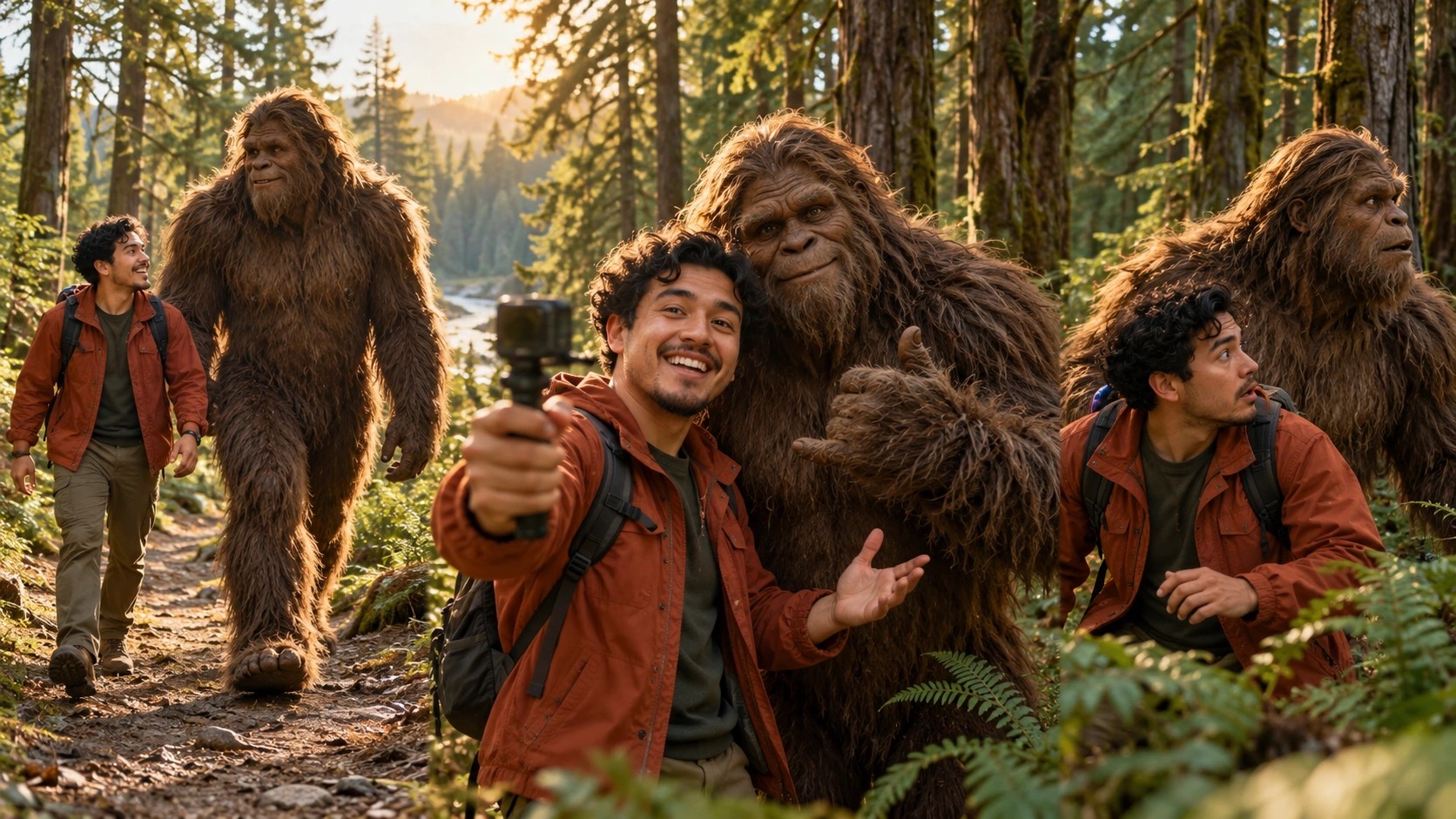
Write the prompt or add a reference
Choose Text to Video and describe the setting, time of day, camera feel and the fictional creature's action. If a still should guide the composition, select Image to Video before uploading it. Keep the action simple enough to follow through a short scene.
Set the direction
Use the editable prompt and model controls to shape tone and look. You might lean toward a shaky vlog, a quiet nature-documentary shot, or a comedic encounter. Adjust the wording until the direction reads the way you picture it, then check the settings before moving on.
Check the quote and generate
The live credit quote updates as you work, so read it before you confirm. Generation runs as a job on your account. When it finishes, open History to review the result, compare versions, and decide whether to adjust the prompt and run another attempt.
What the output gives you
Scenes built from your text
Your prompt drives the scene. Describe a misty trail at dusk, a blurred figure crossing between trunks, or a mock interview setup in a cabin. The output video follows the direction you write rather than a fixed template, so two prompts on the same subject can look quite different.
Optional image reference
Text to Video starts with the written scene and uses no uploaded reference. The separate image-guided mode can use one still to establish a subject or composition. Choose the mode first, then prepare the input that belongs to it.
Jobs and History
Every generation is logged as a job under your account. History keeps your earlier attempts together, so you can revisit a version you liked, compare it with a newer run, and refine your prompt based on what actually appeared in previous clips.
Ways people use it
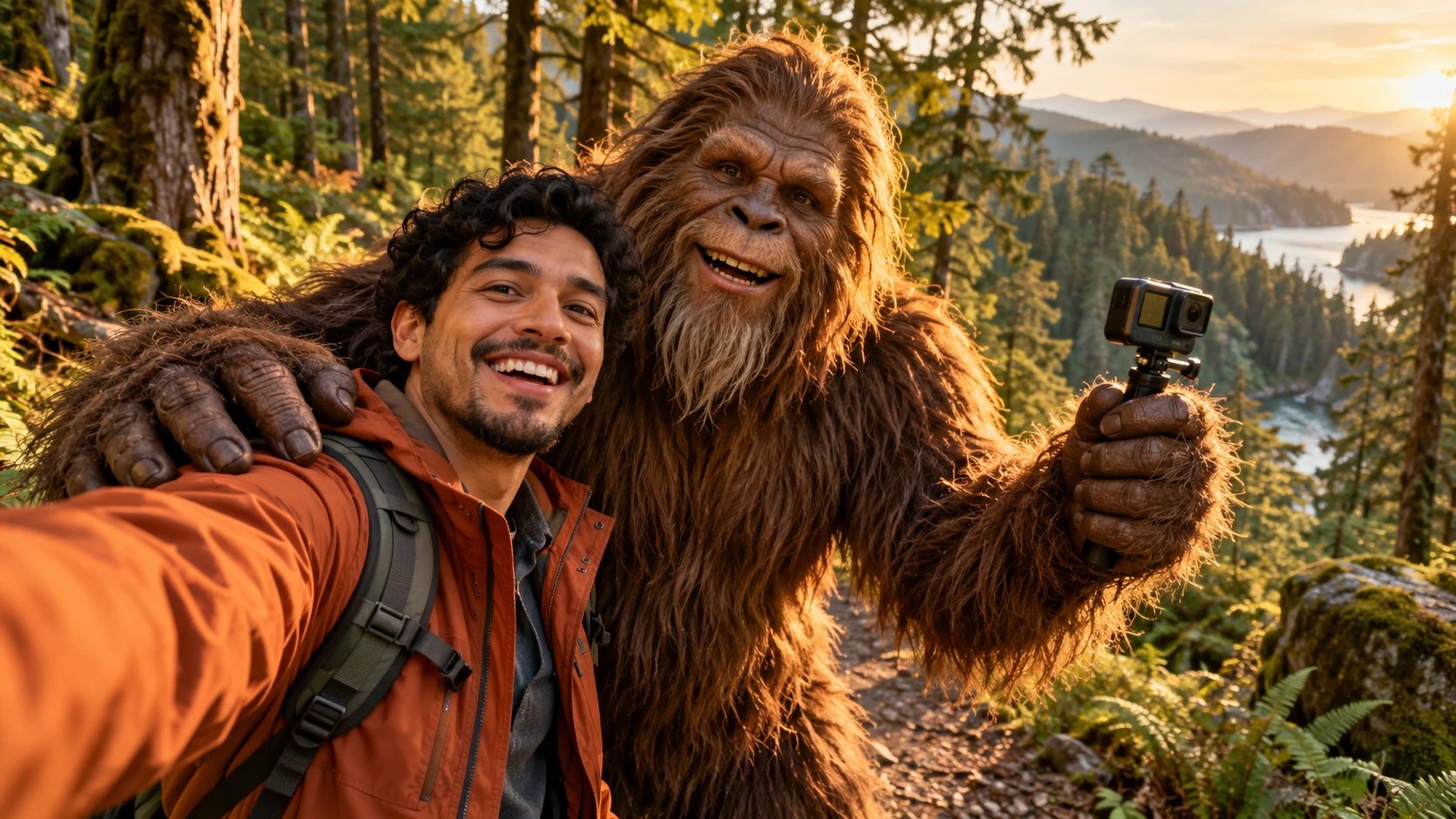
A trail-cam vlog bit
Frame a short vlog where a hiker reviews shaky footage from a night in the woods. The joke lands on the obviously fictional figure at the edge of the frame.
A quiet documentary mood
Build a nature-documentary-inspired scene with slow camera movement through fog and a distant silhouette. Keep narration out and let atmosphere carry the clip.
A comedy encounter
Stage a light comedy beat where a fictional Bigfoot interrupts a picnic. Describe the reaction, the camera angle, and the timing you want in the prompt.
Before you generate
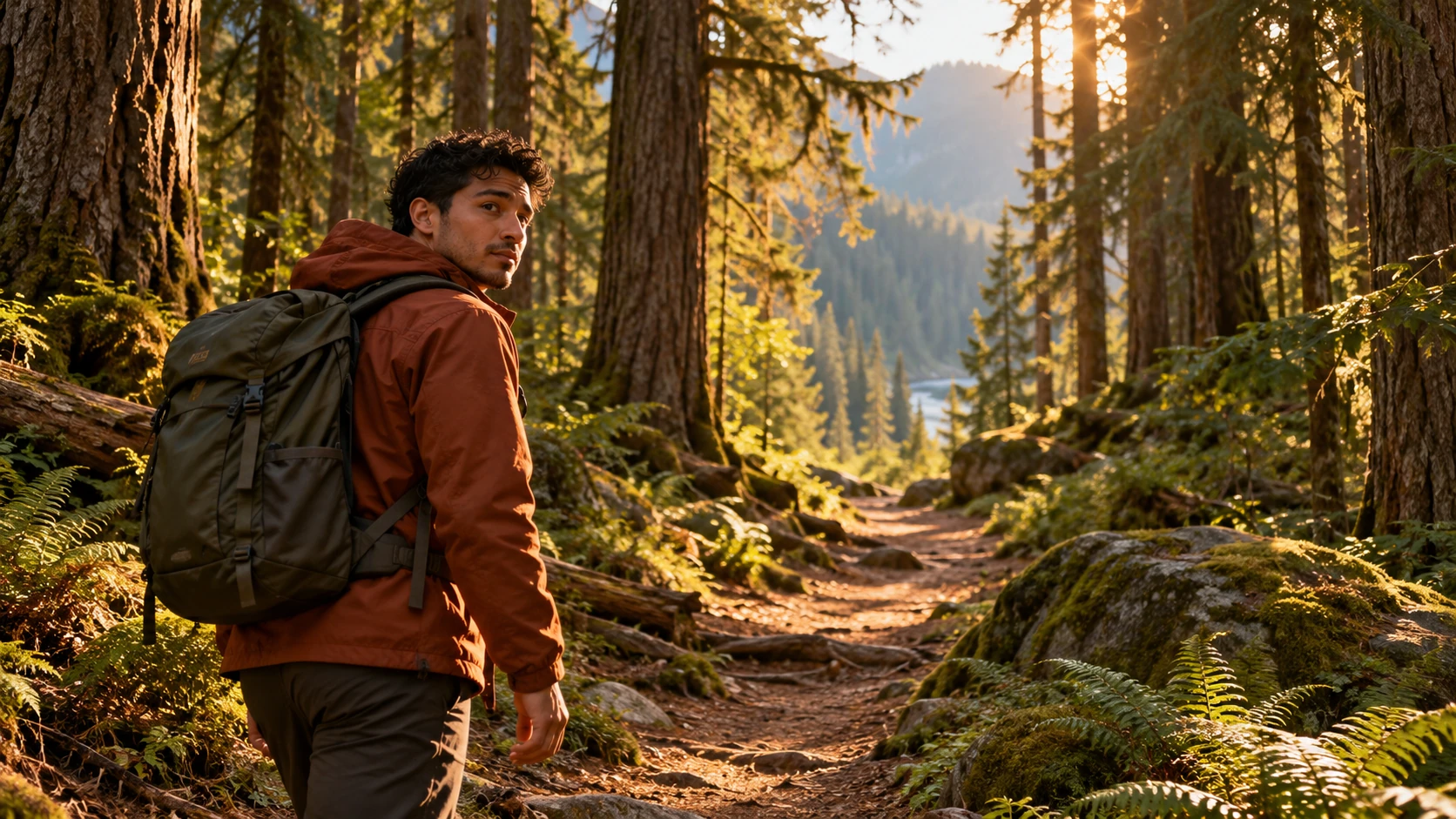
- Say plainly in your prompt that the creature is fictional so the scene reads as intended.
- Describe camera movement and lighting in the same sentence as the subject for a clearer result.
- Read the live credit quote after choosing the model and video settings, before submitting the scene.
Choose one encounter and make the camera part of it
Decide who is holding the viewpoint before describing the forest. A hiker's handheld camera suggests a different scene from a still camera watching a distant trail. In a vlog direction, keep the reaction and the creature readable together. In a quieter sighting, leave enough contrast around the silhouette to see what crosses the path. Give the character one action, such as pausing beside a tree or leaning into the camera, rather than several unrelated stunts. The ordinary details of light, distance and timing help the fictional encounter feel like one coherent moment.
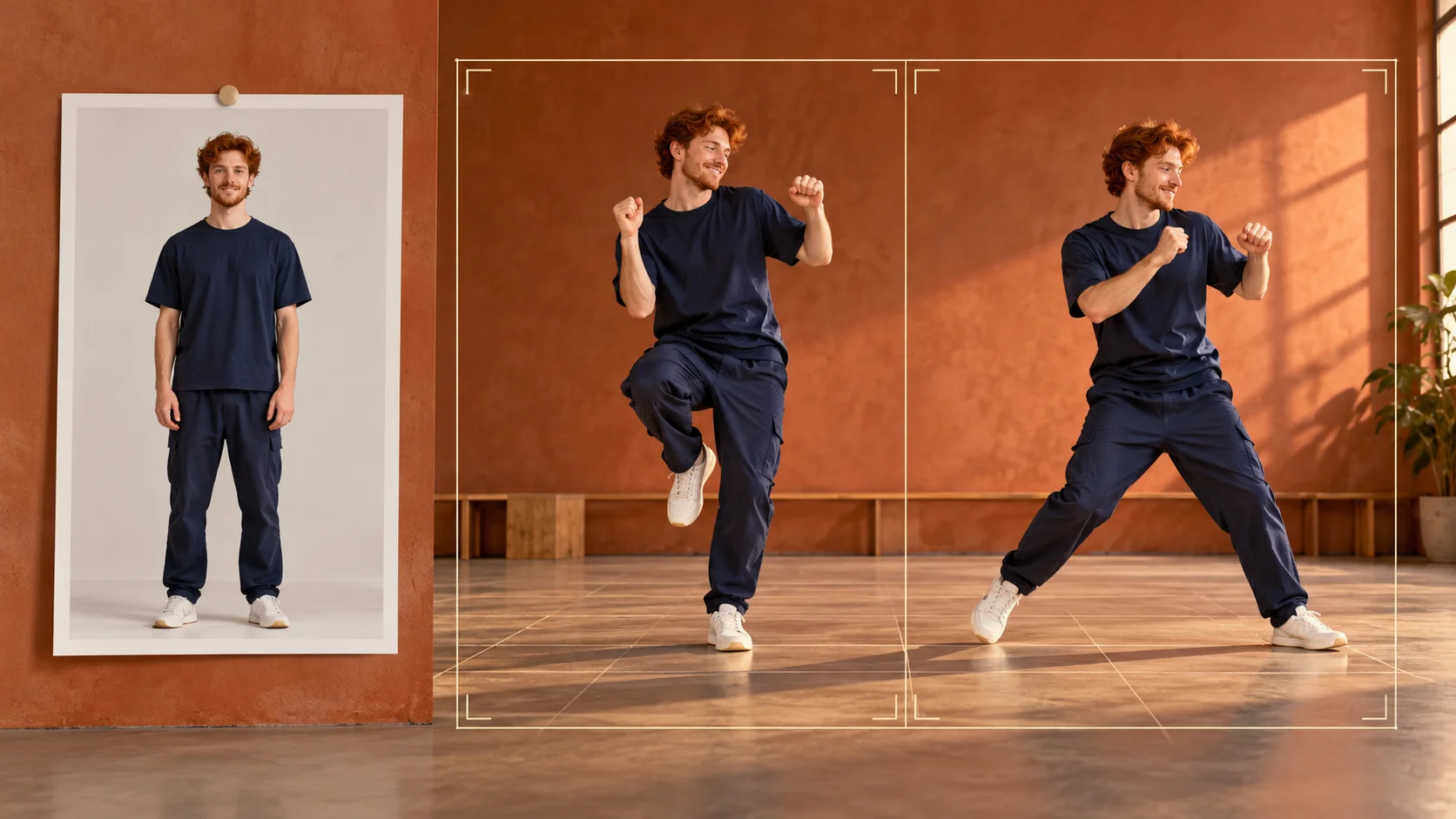
Use the scene preview to notice how a clear action gives a short clip a beginning and an end. Your own direction can use a different forest, camera angle or comic idea. After generation, review the whole result for the creature's outline, the hiker's expression and the movement of hands around a camera or prop. If the scene is confusing, simplify the action instead of adding more effects. Keep the same text structure or reference still for the next comparison. Change one decision, such as camera distance or the creature's reaction, and judge whether that makes the encounter easier to understand.
Bigfoot Video Generator questions
What does the Bigfoot Video Generator actually make?
It creates short fictional videos of a Bigfoot-like subject from your text prompt, with an optional image reference. The result is entertainment content, not evidence of a real creature.
Do I need to upload a photo?
No photo is needed in Text to Video. Choose Image to Video when you have a still that should guide the subject or composition, then upload it in that mode. Keep the two workflows separate when preparing the scene.
Can I control the style of the clip?
You can edit the prompt and use the available model controls to steer tone and look. Styles like vlog, documentary-inspired, or comedy come through in how you describe the scene and camera.
Will the clip have spoken dialogue or a fixed length?
Use the duration and audio options actually available for the selected model. Describe the visual scene clearly and review the completed clip before adding it to a finished edit. The controls and quote shown for your current choice determine the options for that attempt.
How do credits and accounts work?
You sign in to an account, and the generator shows a live credit quote before you generate.
Start your first fictional clip
Write a short forest scene prompt, check the live credit quote, and generate your first Bigfoot clip.
Generate a Bigfoot videoContinue with a related creative guide

flux3video.dev · Updated
See update history
- — Added editable example prompts and separate drafts for text and reference modes, with an action to restore the example.
- — Page content published. Updated page copy and content. Updated page images or videos. Updated page generator or navigation settings.