
Seedream 5.5
Create or Edit a Product Still with Seedream 5.5
History
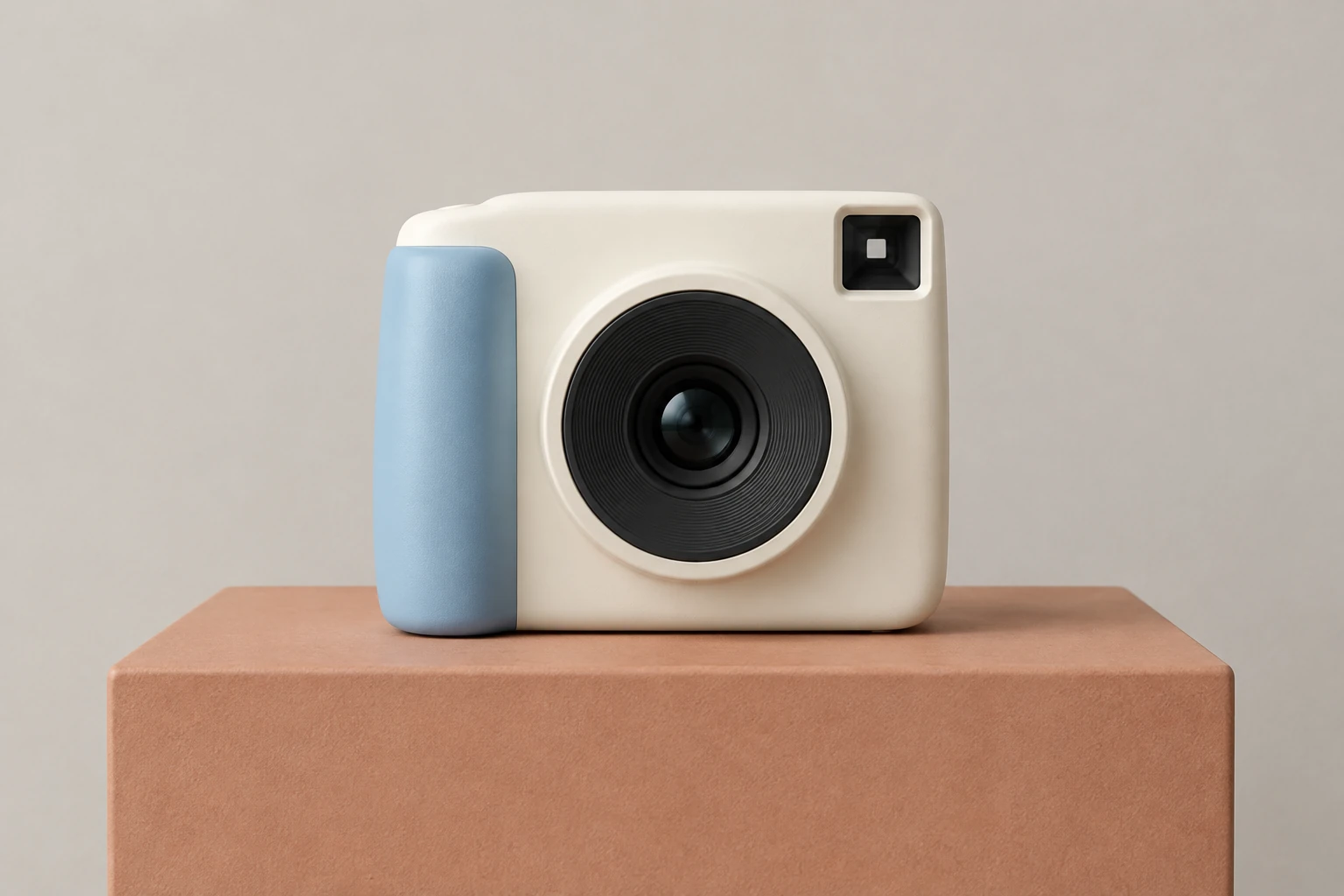
Use Seedream 5.5 to prepare a camera-product still as a visual starting point for later video work. Generate the ivory-and-blue camera scene from words, or edit the wall behind the subject in one supplied photo. Review lens alignment, grip edges and tabletop contact before taking the image into a separate workflow.
Plan and refine your Seedream 5.5 image
Choose a still-image mode
Text to Image has an editable prompt and accepts zero uploads, so use it for the original camera scene below. Image to Image uses one supplied reference and an editable prompt, so choose it when you want a specific change to an existing image. This guide covers still images only.
Describe the subject and scene
Name the object, its visible design features, the setting, and the composition you want. For a product still, say whether the whole object should be visible and identify the details to inspect, such as lens geometry, grip outline, material boundaries, and how the object meets its support.
Request one specific change
For editing, prepare one clear actual reference, then describe a single change. State what must remain unchanged—such as the reference's own subject, design, colors, layout, viewpoint, and lighting—so the requested wall-color change does not become an invitation to redesign the scene.
Review the ready image
Check the whole composition, proportions, lens alignment, grip silhouette, material edges, light, and contact shadows. Look for unwanted text or unrequested changes. History shows generation status and ready images; choose a ready image as a possible separate visual starting point for later video work.
Set up a useful product still
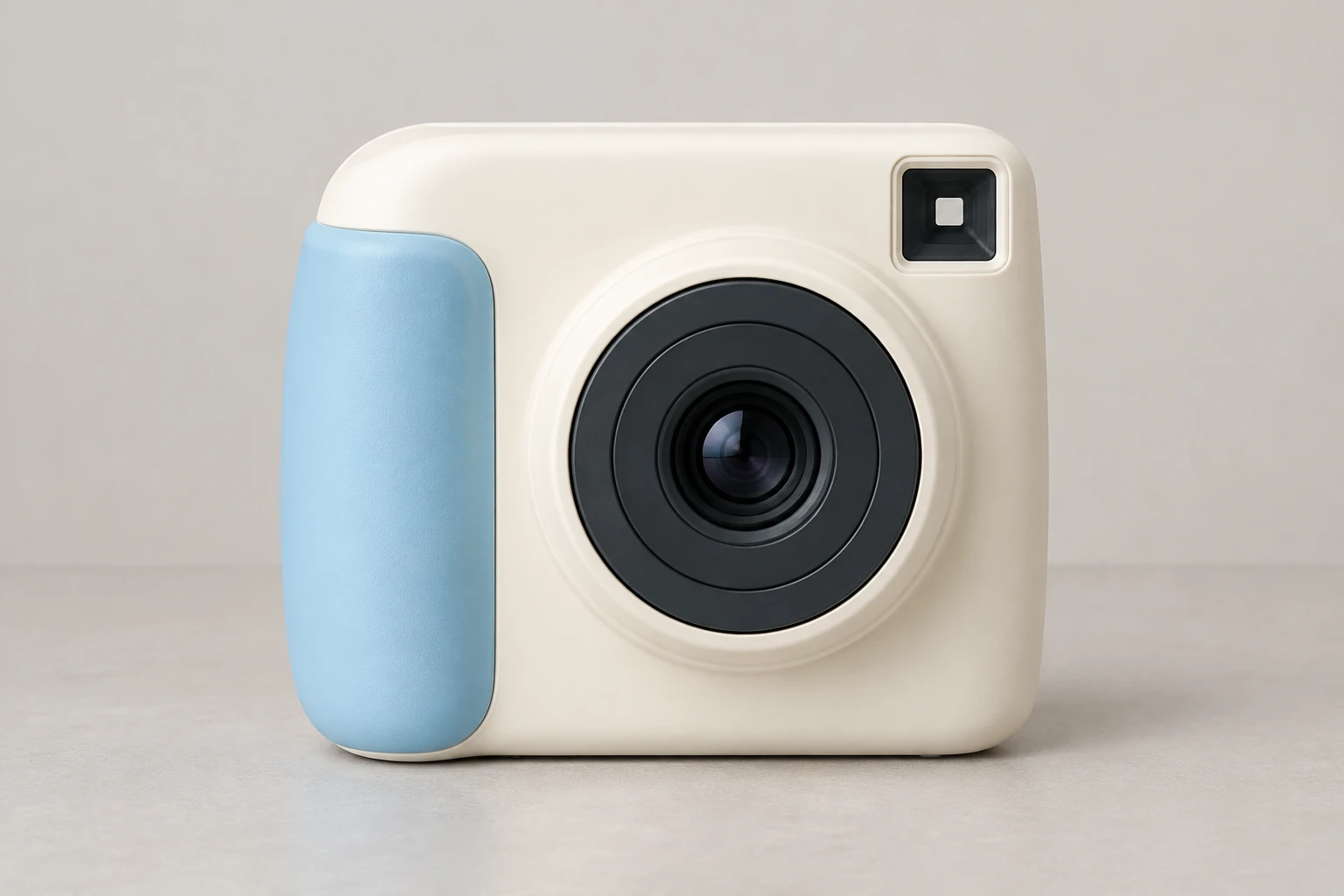
Keep the first prompt concrete and easy to assess. Specify the camera's visible form, its placement, the background, and the lighting rather than asking for an undefined “premium” result. The example prompt describes one original compact ivory instant camera with a large circular dark lens, soft sky-blue grip, and plain square viewfinder. It places the whole camera on a light terracotta plinth against a pale warm-gray studio wall, with coherent lens geometry and gentle contact shadows. Keep the lens, grip and surrounding space easy to read. Look at the composition as a still: confirm the camera is fully in frame, the lens reads as circular, and the grip remains distinct from the body.
Edit the reference you actually have
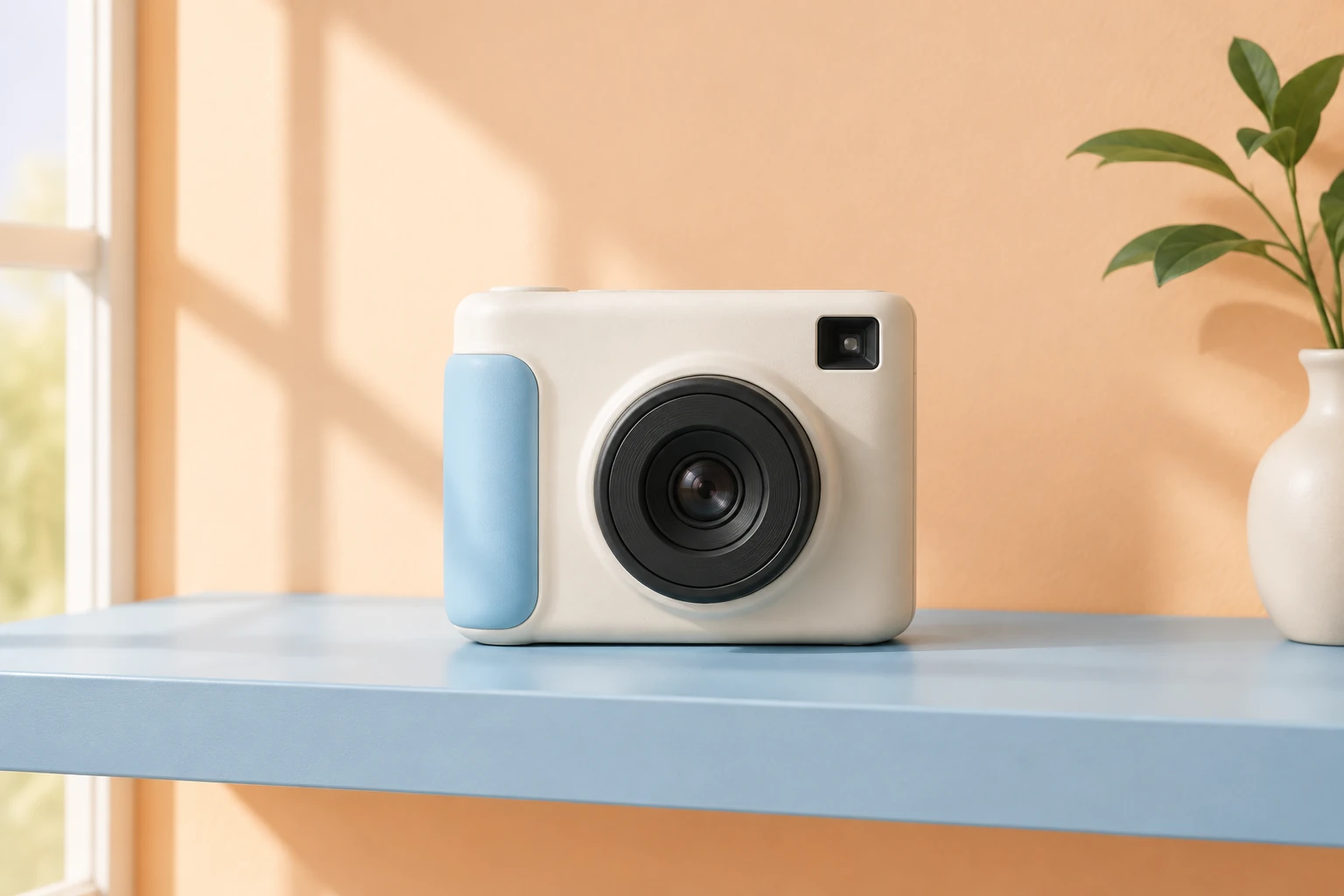
When the goal is a background change, use Image to Image with one actual reference—not the example camera unless that is your reference. Ask only to change its wall to soft apricot, and explicitly preserve that reference's own object or scene, design, colors, layout, camera viewpoint, and lighting. The supplied edit prompt is written for this narrow task and does not substitute a different product. After generation, check whether the subject and arrangement remain recognizable and whether the wall color is the only intended change. If important details shifted, refine the instruction or reconsider the result rather than treating the image as a faithful edit.
Check settings, eligibility, and status
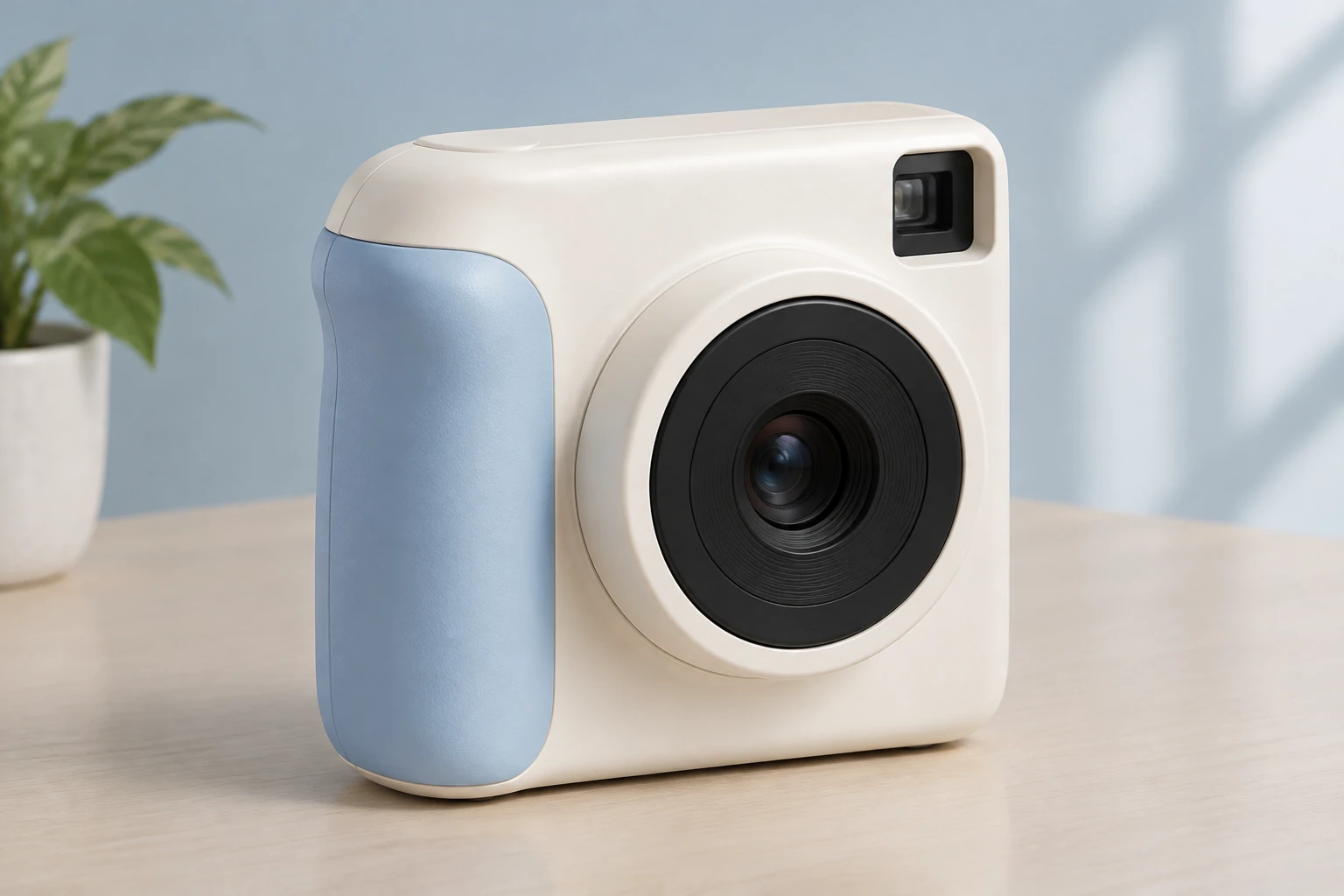
Seedream 5.5 is the enabled display name for this guide. The native menu may expose other models, but the instructions here prioritize Seedream 5.5. Model, aspect ratio, and resolution settings determine the live Required Credits shown in the interface. This model has no free-eligible account access here: check paid eligibility and the current quote before selecting Generate. Do not assume a fixed cost, free allowance, or exact waiting time. History is where you can check status and find ready images.
Decide whether the still is ready for later work
Review edges, proportions, materials, lighting, and unwanted text at the intended viewing size. Confirm that the object looks grounded on its surface rather than floating, and that the background change has not altered the reference's subject or layout. A still can help establish a visual direction for a later video task, but this interface produces an image here: it does not produce video or camera movement. Select a ready image only after its visible details suit your next step.
Seedream 5.5 questions
What does this Seedream 5.5 tool do?
It generates or edits still images. Use Text to Image for a new scene or Image to Image to edit one supplied reference. It does not generate video or camera movement.
Can I use a reference in either mode?
Text to Image uses an editable prompt and zero uploads. Image to Image uses one supplied reference and an editable prompt.
Can I use it for free, and what will a generation cost?
This model has no free-eligible account access here. Check your paid eligibility and the current Required Credits quote before Generate; the live quote depends on the selected model, aspect ratio, and resolution.
How long will it take, and where can I see the image?
There is no fixed waiting time to rely on. Check History for the generation status and any ready images.
How should I guide a reference edit?
Use one clear actual reference, request one specific change, and state which visible features must remain. For a wall-color edit, preserve the reference's own subject, design, colors, layout, viewpoint, and lighting.
What should I check before using a ready image?
Review composition, proportions, lens alignment, silhouette, material edges, lighting, contact shadows, and unwanted text or other changes. Make sure the image works as a still for your intended next step.
More ideas to explore
flux3video.dev · Updated
See update history
- — Added a camera-product still guide with four original visual studies, editable prompts for zero-upload generation and one-reference wall editing, and lens, material and contact-shadow checks.