
3 Layer Photo Editing for portraits on a foggy ferry platform
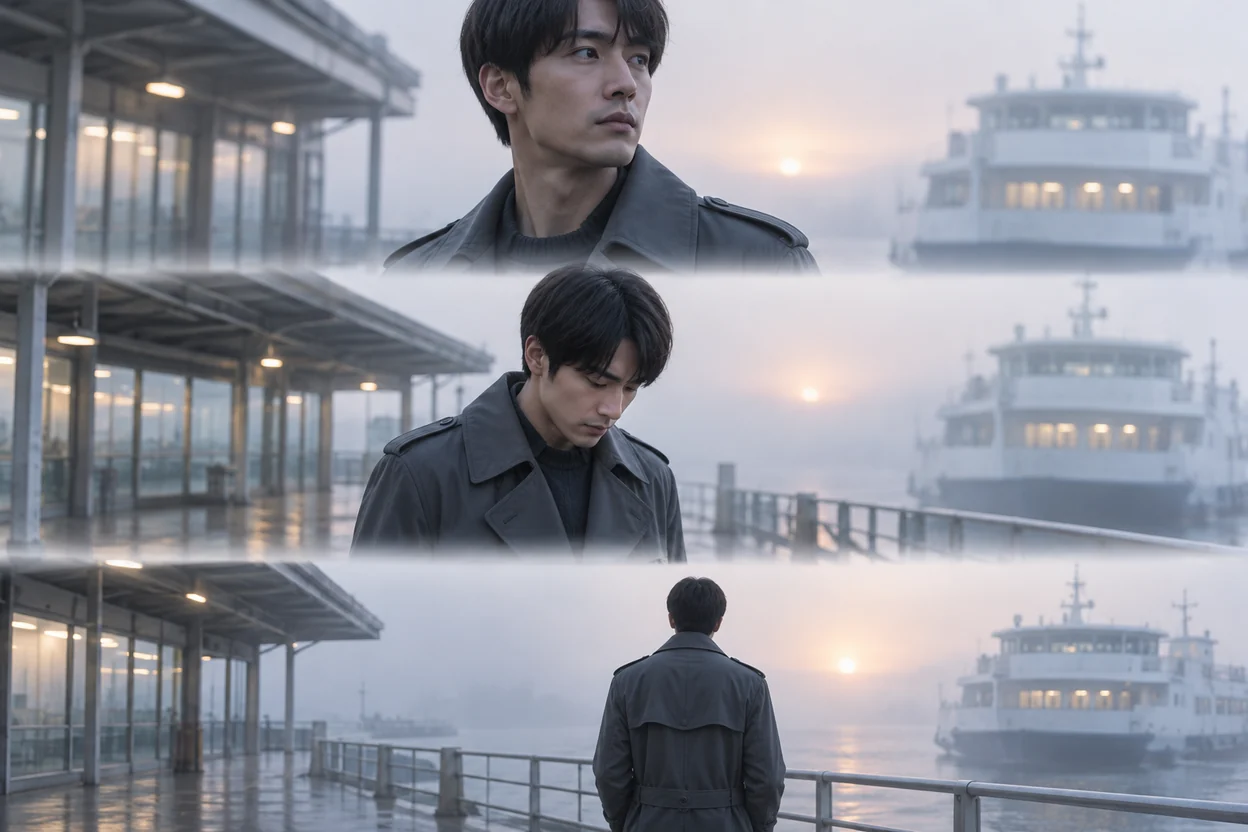
Create a three-frame photo montage
History
3 Layer Photo Editing turns one uploaded portrait into a flattened montage of three related photographic views: a wider crop, a close face crop, and a chest-up view, joined by soft, airy white transitions. You can also use text mode to create a new fictional scene without uploading a photo. The result is one finished composite image, not a PSD with separately editable layers.
Create your three-band portrait
- Choose image mode and upload one uncropped source portrait. A clear view of the face, hair, and clothing gives the montage room for different crops. Or choose text mode and describe a new fictional scene; this mode does not use an uploaded reference.
- Review the suggested prompt and adjust the scene or crop directions. For a portrait, specify a wider view in the top band, a tight face crop in the middle, and a chest-up angle below. Say what should stay consistent, such as facial features, hair, and clothing, and what may change, such as framing or background.
- Check the displayed quote before submitting. After the image is ready, inspect the three views for facial consistency, crop placement, and smooth white transitions; use History to revisit the result.
Compare the portrait and the three-frame result
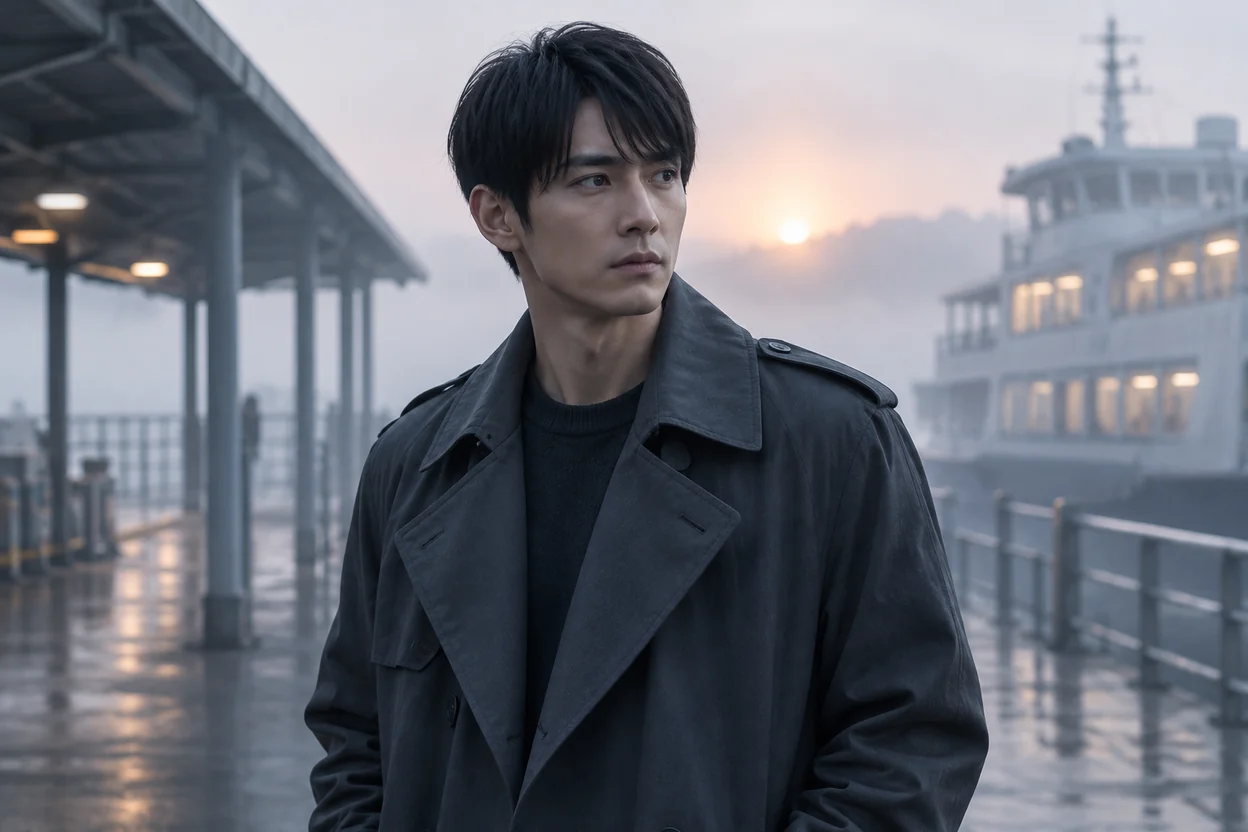
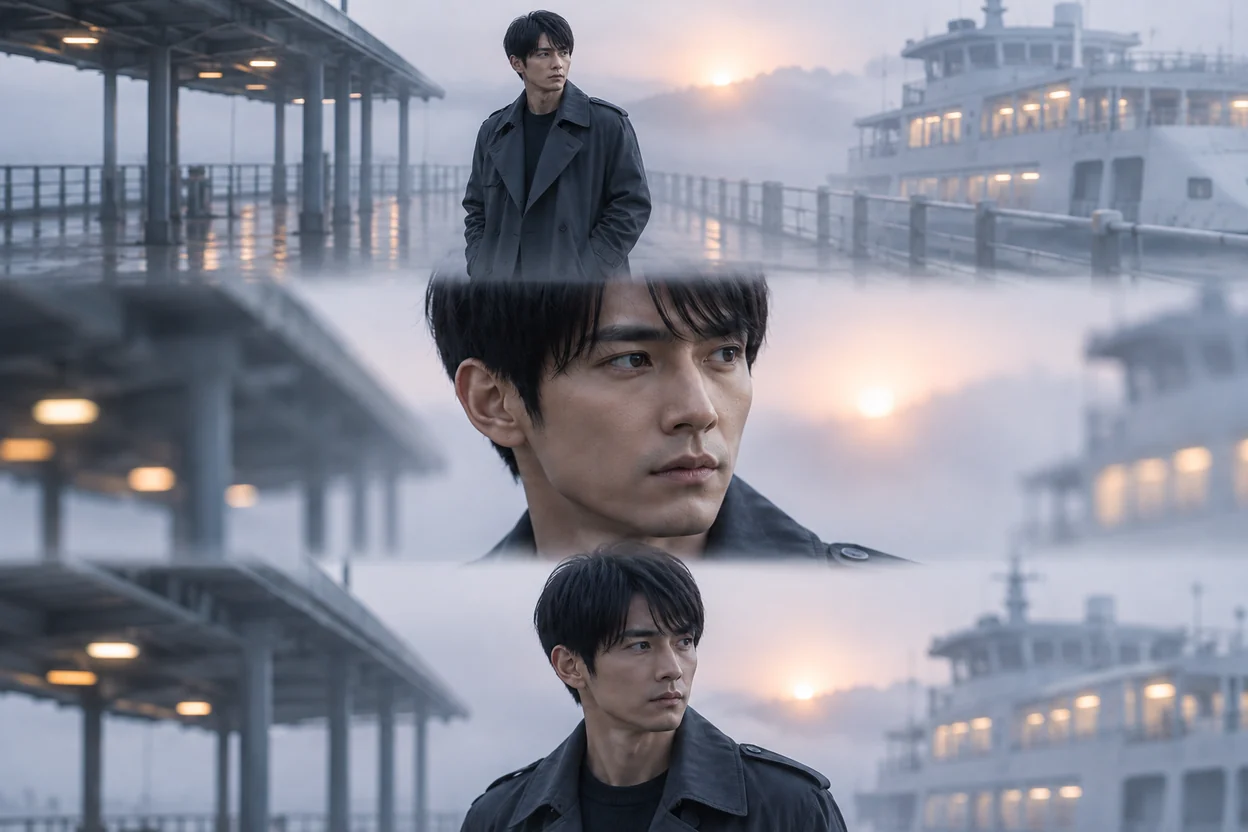
Check the finished image
- Confirm all three bands show the same subject, with the intended wide, close, and chest-up framing.
- Look closely at the face, hair, and clothing across the bands for noticeable changes in identity or appearance.
- Check that pale transitions feel soft rather than cutting through important facial details, and remember the output is one flattened composite image.
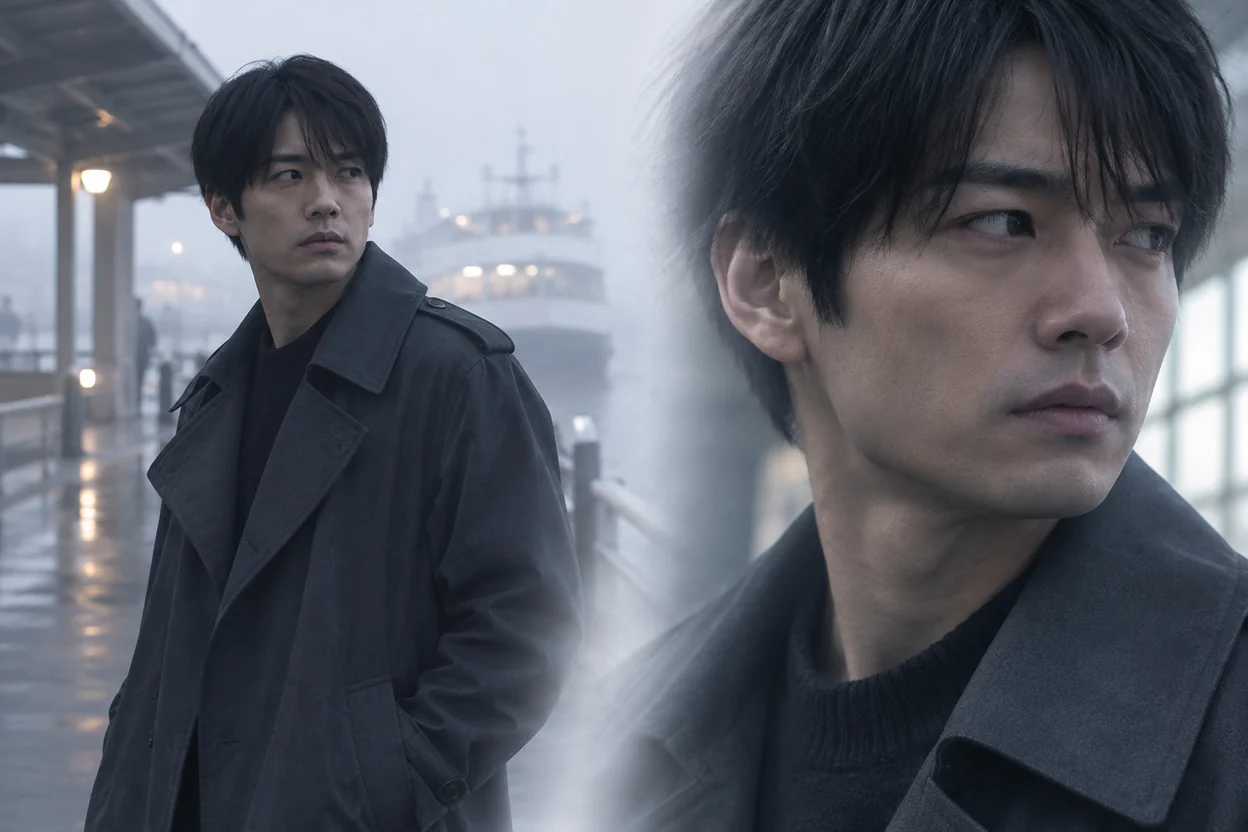
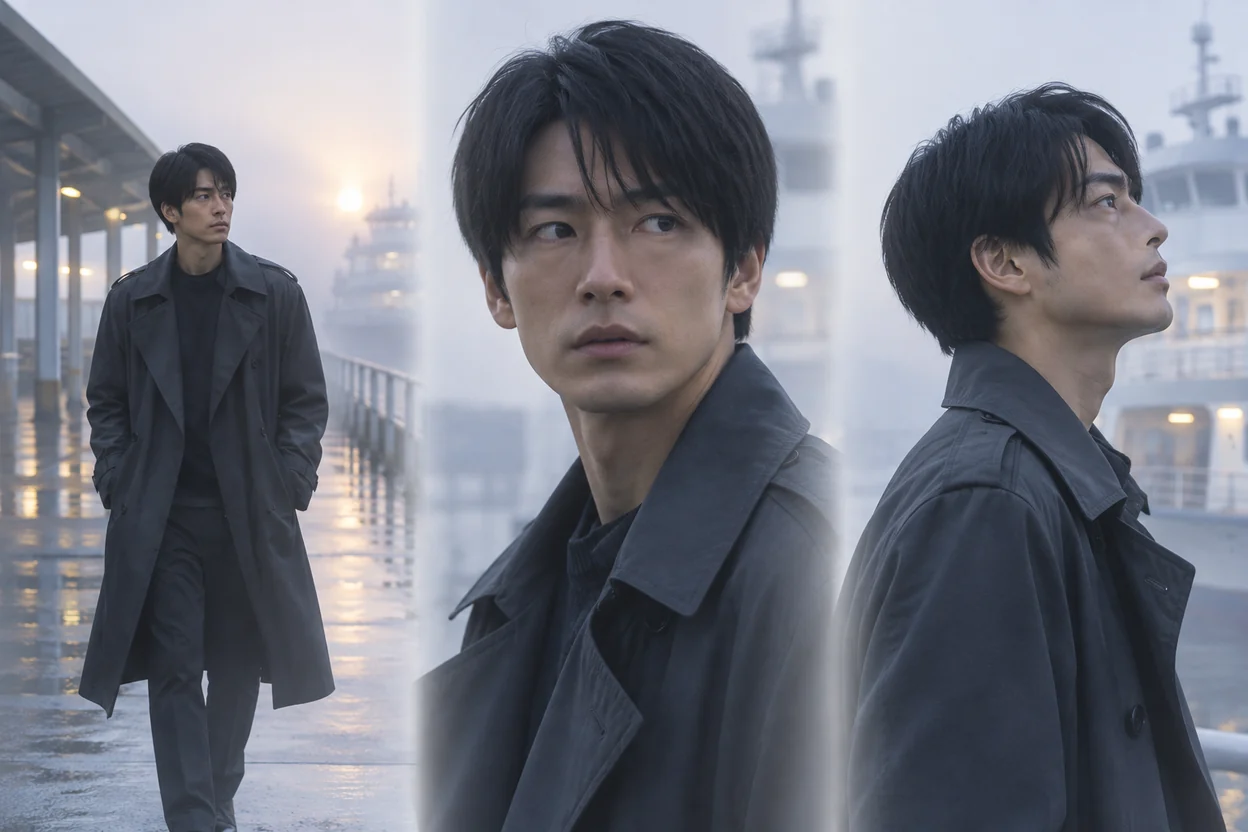
Questions about three-frame photo editing
Can I edit each band separately after generation?
The result is a flattened composite image. It does not export a PSD or provide independently editable bands.
What kind of photo should I upload?
Use a clear, uncropped portrait with the face and useful surrounding detail visible. An uncropped source gives the model more room to plan the wide, close, and chest-up views.
What does text mode do?
Text mode creates a new fictional three-band montage from your scene description. It does not rely on an uploaded reference photo.
How can I check my request and result?
Review the displayed quote before submitting, then inspect the finished composite for crop placement, facial consistency, and the transitions. Use History to revisit the result.
How long does image generation take?
Check History after you submit. The task status shows when your edit is ready to compare with the original portrait.
Can I try this with my current credits?
Related tools
flux3video.dev · Updated
See update history
- — This generator uses Nano Banana 2 image edit and generate. Image mode takes one optional uploaded portrait; text mode takes one optional scene prompt and creates a new fictional montage. Both modes produce one finished composite image, not separate editable layers or a PSD.